Choose a vacation rental that guarantees at least 100 Mbps, a dedicated desk, and responsive host support — then verify all three with a speed-test screenshot and workspace photos before you pay. That’s the short version. Rentalsinstgeorgeutah offers spacious, work-ready homes in St. George, Utah, minutes from Zion National Park, with whole-house WiFi, full kitchens, and dedicated customer support built into every stay.
Your non-negotiables before booking any remote work vacation rental:
- Bandwidth: minimum 25 Mbps for solo email and video calls; 100+ Mbps if you share the connection or upload large files
- Dedicated workspace: a real desk and ergonomic chair, not a kitchen counter
- Host responsiveness: confirmed response time under one hour for urgent issues, with a written maintenance policy
Immediate next steps:
- Run the verification checklist in Section 4 before you finalize payment
- Message the host for a speed-test screenshot taken within the last 30 days
- Confirm cancellation terms and ask whether a loaner hotspot is available if WiFi fails
Pro Tip: Business Insider’s first-person reporting notes that rotating through vacation rentals can actually cost less than a city lease when you negotiate weekly or monthly discounts — so the math often works in your favor.
Key Takeaways
A productive remote work vacation rental comes down to three things: verified bandwidth, a proper workspace, and a host who communicates clearly before and during your stay.
| Point | Details |
|---|---|
| Verify bandwidth before booking | Request a Speedtest.net screenshot from the host, taken within 30 days, showing upload speed and latency. |
| Require a real workspace | Confirm a dedicated desk, ergonomic chair, and Ethernet access in writing before you pay. |
| Check host response time | Look for hosts who respond within one hour; ask about their maintenance triage process for urgent issues. |
| Plan your backup options | Identify a mobile hotspot, nearby co-working space, or cafe with strong WiFi before you arrive. |
| Rentalsinstgeorgeutah for St. George stays | Work-ready vacation homes in St. George, Utah, with whole-house WiFi, full kitchens, and dedicated support. |
Table of Contents
- What makes a vacation rental truly remote-work friendly?
- What amenities should you require in a remote-work rental?
- How do you verify WiFi and workspace before booking?
- What does the booking checklist and budget look like for remote work stays?
- Which destination types work best for different remote workers?
- What does a remote-work-ready St. George rental look like in practice?
- What should you pack for a productive remote-work stay?
- What I’ve learned from two weeks working out of a vacation rental
- St. George vacation homes built for remote workers, ready to book
- Sources
What makes a vacation rental truly remote-work friendly?
A remote-work vacation rental, sometimes called a workation rental, is a short-term property that delivers work-grade internet, a proper workspace, and predictable host support alongside the usual leisure amenities. The key word is work-grade: a listing that says “WiFi available” is not the same as one that guarantees 100 Mbps with a wired Ethernet port and a host who answers within the hour.
Who benefits most:
- Short workation travelers (1–2 weeks): professionals extending a vacation with a few work days, or teams doing an off-site sprint
- Project-sprint renters (2–4 weeks): freelancers and contractors on deadline who need a change of scenery without sacrificing output
- Monthly remote-nomad stays (1+ month): full-time remote workers replacing a permanent lease with a curated sequence of short-term rentals
Stay length matters more than most people realize. A two-week stay gives you enough time to settle into a routine, but a monthly stay tends to be the sweet spot for productivity. You get a stable setup, a discounted nightly rate, and enough time to actually feel at home rather than perpetually unpacking. For anyone working across time zones, that stability pays off quickly.
What amenities should you require in a remote-work rental?
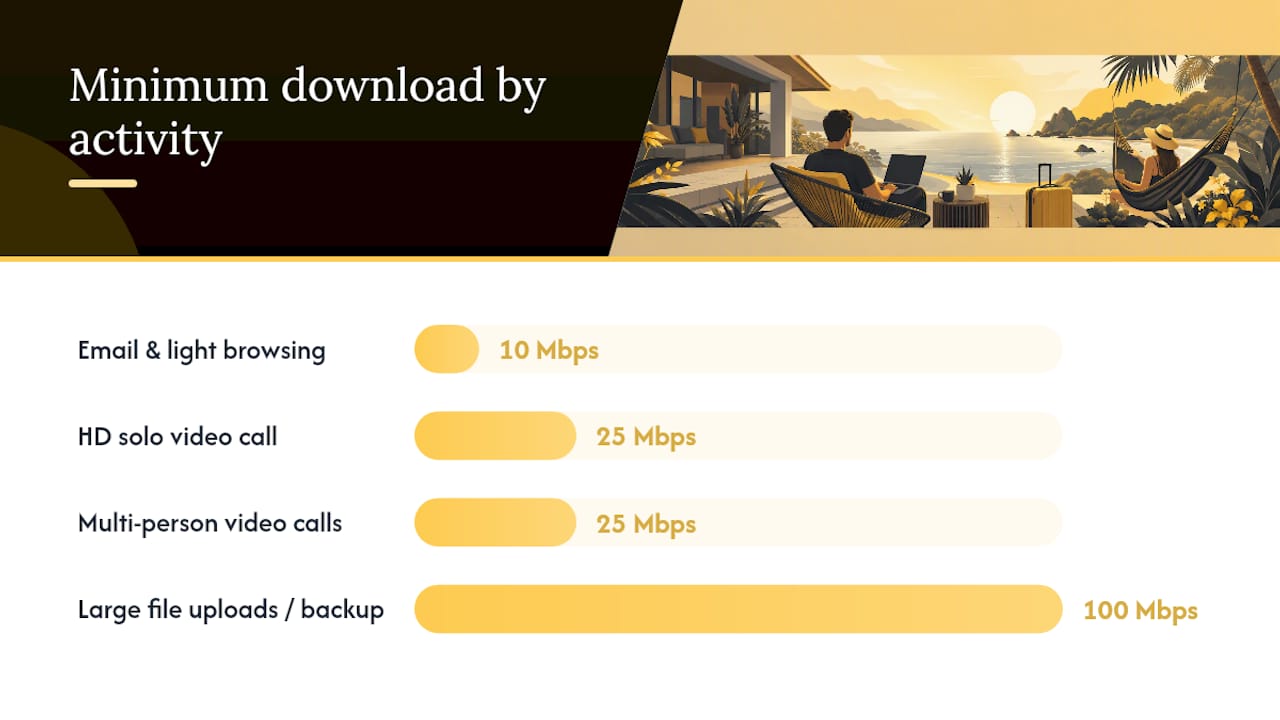
Bandwidth is the foundation, but it’s not the whole picture. Here’s how internet speed maps to the work you actually do:
| Activity | Minimum Download | Minimum Upload | Notes |
|---|---|---|---|
| Email, Slack, light browsing | 10 Mbps | 5 Mbps | Comfortable for solo use |
| HD Zoom or Google Meet (solo) | 25 Mbps | 10 Mbps | Add buffer for background apps |
| Multi-person video streams | 25 Mbps | 25 Mbps | Two or more people on calls simultaneously |
| Large file uploads / cloud backup | 100 Mbps | 25 Mbps | Video editors, developers pushing large repos |
Beyond speed, these are the listing features worth requiring in writing when you book:
- Dedicated desk with enough surface area for a laptop plus a second monitor
- Ergonomic chair (not a dining chair or a barstool)
- Wired Ethernet port or at minimum a router within 15 feet of the workspace
- Multiple power outlets near the desk, ideally with USB-A and USB-C ports
- Quiet hours policy and a property layout that separates the workspace from high-traffic areas
- Reliable HVAC — a workspace that hits 85°F by noon is not a workspace
- Good natural and artificial lighting with the option to reduce glare on screens
Listings from properties that specifically target remote workers, like the digital nomad rental at Kualapa on North Shore Oahu, show exactly what’s possible: a dedicated workspace, external monitor, ergonomic chair, whole-house high-speed WiFi, and an Ethernet port. That’s the benchmark. If a listing doesn’t mention at least three of those features explicitly, ask before you book.
Pro Tip: Treat any listing that uses vague language like “fast WiFi” or “great for remote work” without specifics as a red flag. Ask the host for the ISP name, the router model, and a speed-test screenshot. A host who targets remote workers will have that information ready.
How do you verify WiFi and workspace before booking?
Verification is where most remote workers skip a step and pay for it on day two of a critical project. Here’s the process to follow before you confirm payment:
- Read every review for bandwidth mentions. Search the review text for words like “WiFi,” “internet,” “Zoom,” and “slow.” One complaint about dropped calls in a sea of five-star reviews is still a data point.
- Request a speed-test screenshot from the host. Ask specifically for a test run on Speedtest.net or Fast.com, taken within the last 30 days, at the workspace location (not the living room couch). Note both download and upload speeds.
- Ask about wired access. Confirm whether an Ethernet cable and adapter are available, and where the router sits relative to the desk.
- Ask about peak-hour performance. Many vacation-area ISPs throttle during evenings. Ask the host whether speeds hold steady between 7 PM and 10 PM.
- Confirm simultaneous-user expectations. If two people will be on video calls at the same time, say so. Ask whether the connection has handled that before.
- Ask about the host’s maintenance triage process. Professional hosts follow a clear playbook: urgent issues (WiFi outage, no power) get same-day attention; priority issues (slow speeds, appliance failure) get next-day resolution. Destin Dreamers’ operations guide outlines exactly this kind of triage, including loaner hotspots as a workaround while repairs happen.
Copy-paste host message template:
When you interpret the speed-test numbers, pay attention to upload speed and latency, not just download. A 200 Mbps download with a 5 Mbps upload will make screen sharing painful. Latency above 80ms will make video calls choppy even at high speeds. Those two numbers tell you more about your workday than the headline download figure.
Hostrexa’s guest communication guide points out that hosts who send a pre-arrival digital guidebook with WiFi credentials, router location, and basic troubleshooting steps dramatically reduce mid-stay friction. If your host offers one, that’s a strong signal they’ve hosted remote workers before.
Pro Tip: On day 2 or 3 of your stay, send a brief check-in message: “Everything’s working well — just confirming the WiFi is holding steady for calls. Let me know if there’s anything on your end.” This opens the door for the host to flag any known issues early, before they affect your work.
What does the booking checklist and budget look like for remote work stays?
Getting the logistics right before you arrive saves you from scrambling once you’re on the clock. Work through this checklist before you confirm any booking:
- Confirm your work hours against the host’s time zone. If you’re East Coast and the host is in Hawaii, a 9 AM call means your host is still asleep if something goes wrong.
- Request the speed-test screenshot (as described above) before final payment, not after.
- Check the host’s average response time in their profile. Houfy’s 2026 best practices recommend hosts respond within one hour; anything slower than that for a remote-work stay is a concern.
- Review the cancellation policy carefully. If the WiFi turns out to be unusable, a strict no-refund policy leaves you stuck. Look for moderate or flexible cancellation terms.
- Ask about long-stay discounts. Most hosts offer weekly and monthly rates that reduce the per-night cost significantly.
- Identify backup options in advance: the nearest co-working space, cafes with strong WiFi, and whether your mobile carrier has strong coverage at the property.
On pricing: nightly rates for work-friendly vacation homes vary widely by market and season, but the per-night cost typically drops with longer stays. Business Insider’s reporting on remote workers who rotate through vacation rentals shows that monthly discounts, combined with eliminating a fixed lease, can make this lifestyle genuinely cost-competitive. The math works best when you book at least 4 weeks ahead for monthly stays during peak season, or 2–4 weeks ahead for shorter workations.
Pro Tip: Ask for a trial weekend before committing to a full month. Some hosts will apply the weekend cost toward the monthly rate if you decide to stay. It’s a low-risk way to verify the setup before you’re locked in.
Which destination types work best for different remote workers?
The right setting depends on how you work, not just where you want to vacation. Here’s a quick breakdown:
- City rentals: best connectivity, most services nearby (co-working spaces, shipping, printing), and easiest access to fiber ISPs. The trade-off is noise and higher nightly rates. Ideal for client-facing roles that need reliable, fast connections at all hours.
- Small towns: more affordable per night, often quieter, but ISP options can be limited. Always verify the ISP name before booking — some rural areas rely on satellite or fixed wireless, which can have higher latency.
- Mountain properties: quiet and inspiring, but power reliability can vary. Ask specifically about generator backup or UPS availability, and check whether the area has a history of outages.
- Beach rentals: lifestyle appeal is high, but coastal vacation areas sometimes have overloaded ISPs during peak season. Ask about peak-hour speeds specifically for summer or holiday weeks.
For teams renting together, a whole-house rental with multiple desks and a router that supports simultaneous heavy use is the right call. Engineers who need wired, heads-down focus do best in properties that explicitly advertise Ethernet. Creatives who can tolerate slightly slower speeds in exchange for a view can be more flexible, provided they have a mobile hotspot as backup.
Time zone fit matters more than most people plan for. If your team’s daily standup is at 9 AM Eastern and you’re booking a property in the Mountain Time zone, you’re starting your day at 7 AM local time. That’s fine for early risers, but worth factoring into your destination choice.
What does a remote-work-ready St. George rental look like in practice?
St. George, Utah sits in a position that works unusually well for remote workers. The city has reliable fiber internet infrastructure, a dry and sunny climate that makes outdoor breaks genuinely restorative, and proximity to Zion National Park for after-work decompression. It’s also far enough from major metro areas to feel like a real escape, but connected enough to support serious work.
A typical vacation home in St. George through Rentalsinstgeorgeutah includes whole-house WiFi, a full kitchen for cooking instead of expensing every meal, washer and dryer for longer stays, and private outdoor space. The properties are spacious enough that a couple or small team can each have a quiet corner for calls.
A practical remote-work stay here might look like this: you arrive Sunday evening, run a speed test at the desk, connect via Ethernet, and confirm your setup before Monday morning. Calls run cleanly through the week. By Thursday afternoon, you’re hiking a red-rock trail 20 minutes from the front door. That balance, productive mornings and genuinely restorative evenings, is what makes a workation worth the planning.
Before arrival, send this request to your host:
- Confirm Ethernet adapter availability (or bring your own USB-C to RJ45)
- Ask whether a second monitor can be set up, or whether you should bring a portable one
- Request the WiFi name, password, and router location in the pre-arrival message
- Clarify the same-day response window for urgent issues
Hosts who use a structured communication approach, like the milestone messaging framework described in Houfy’s best practices, typically send a 5-day pre-arrival message with all of this information included. If yours doesn’t, ask for it directly.
Pro Tip: When booking through Rentalsinstgeorgeutah, request a mid-stay maintenance contact at check-in and confirm the same-day response window for WiFi or power issues. Knowing who to call and when they’ll respond removes the anxiety from any technical hiccup.
What should you pack for a productive remote-work stay?
Your rental handles the big stuff. These are the portable items that make the difference between a frustrating first day and a smooth one:
- Travel laptop stand to bring the screen to eye level
- Portable monitor (15-inch options weigh under 2 lbs) for dual-screen setups when the rental doesn’t provide one
- USB-C to Ethernet adapter — don’t assume the rental has one
- Noise-canceling headphones for calls in shared spaces
- Universal plug strip with surge protection (6+ outlets, USB-A and USB-C ports)
- Travel router if you want to create your own network from the rental’s connection
- Mobile hotspot or eSIM as a backup if the property WiFi underperforms
- Compact ergonomic mouse and keyboard if you work long hours
- Backup power bank with pass-through charging for phones and small devices
On arrival, run through this setup sequence before you open your laptop for work: test the wired connection speed, position your monitor to reduce window glare, adjust the chair height, and locate the nearest 24-hour store or pharmacy for anything you forgot.
Pro Tip: A compact travel UPS (uninterruptible power supply) costs around $40–$60 and gives you 15–30 minutes of runtime during a brief outage. For anyone on live client calls or submitting time-sensitive work, that buffer is worth the bag space.
What I’ve learned from two weeks working out of a vacation rental
The workation that taught me the most wasn’t the one where everything went perfectly. It was the one where I pre-booked Ethernet access and confirmed a host-provided monitor, which made the first week genuinely productive, but forgot to set up a mid-stay check-in message. By day 10, the router had quietly started dropping connections every few hours. The host fixed it within 20 minutes once I messaged, but I’d lost two days of stable work waiting to see if the issue would resolve itself.
The single habit that changed every stay after that: send a brief check-in message on day 2 or 3. Not a complaint, just a quick “everything’s running well” note that opens a line of communication. Hosts who know you’re paying attention tend to be more proactive. And if something is quietly degrading, you catch it before it costs you a deadline.
The other lesson: always request a speed-test screenshot before final payment. Not after. Not on arrival. Before. It takes the host 90 seconds and tells you everything about whether they’ve hosted remote workers before.
St. George vacation homes built for remote workers, ready to book
Rentalsinstgeorgeutah offers a direct path to work-ready properties in St. George, Utah, with whole-house WiFi, full kitchens, private outdoor space, and dedicated customer support throughout your stay. No hunting through generic listings for buried amenity details — the properties are curated for guests who need both comfort and connectivity.
The booking process is straightforward: browse available homes, confirm your dates and work requirements, and use the host message template from Section 4 to verify speed and workspace details before you finalize. Properties range from cozy homes for solo stays to spacious house rentals that comfortably accommodate a team. With Zion National Park nearby and a sunny, dry climate year-round, St. George gives you the kind of after-work reset that makes the next morning’s work feel lighter.
Browse available St. George vacation homes and check current availability for your dates.
Sources
These sources informed the guidance throughout this guide:
- I work remotely from vacation rentals. It’s cheaper than rent or a mortgage — here’s how I find good deals and choose where to go next.
- Work From Hawaii: Digital Nomad Rental North Shore Oahu | Kualapa | Kualapa – North Shore Oahu Vacation Rental
- If Something Breaks During Your Stay : All You Need To Know | Destin Dreamers
- Vacation Rental Guest Communication: The Complete Guide for Property Managers — Hostrexa Blog
- Vacation Rental Guest Communication Best Practices 2026
Recommended
- How to Save Money on Vacation Rentals in 2026: Top Tips and Tricks – rentalsinstgeorgeutah.com
- Best Vacation Rental Sites in the US for 2026 – rentalsinstgeorgeutah.com
- Cheapest Vacation Rental Sites in 2026: Where to Book for Less – rentalsinstgeorgeutah.com
- Common Vacation Rental Problems and How to Avoid Them in 2026 – rentalsinstgeorgeutah.com